Appearance
Trade
The Trade screen is where you build a deal with another team. Pick what each side sends, read the value balance, and send the offer.
How to get here
- Open a league.
- In the left rail, under League, select Trade. A badge shows how many offers wait on you.
You can also arrive from a player's page (Propose trade, Shop for trade), from the scouting card on Players (Add to trade), or from Trade block.
What you see
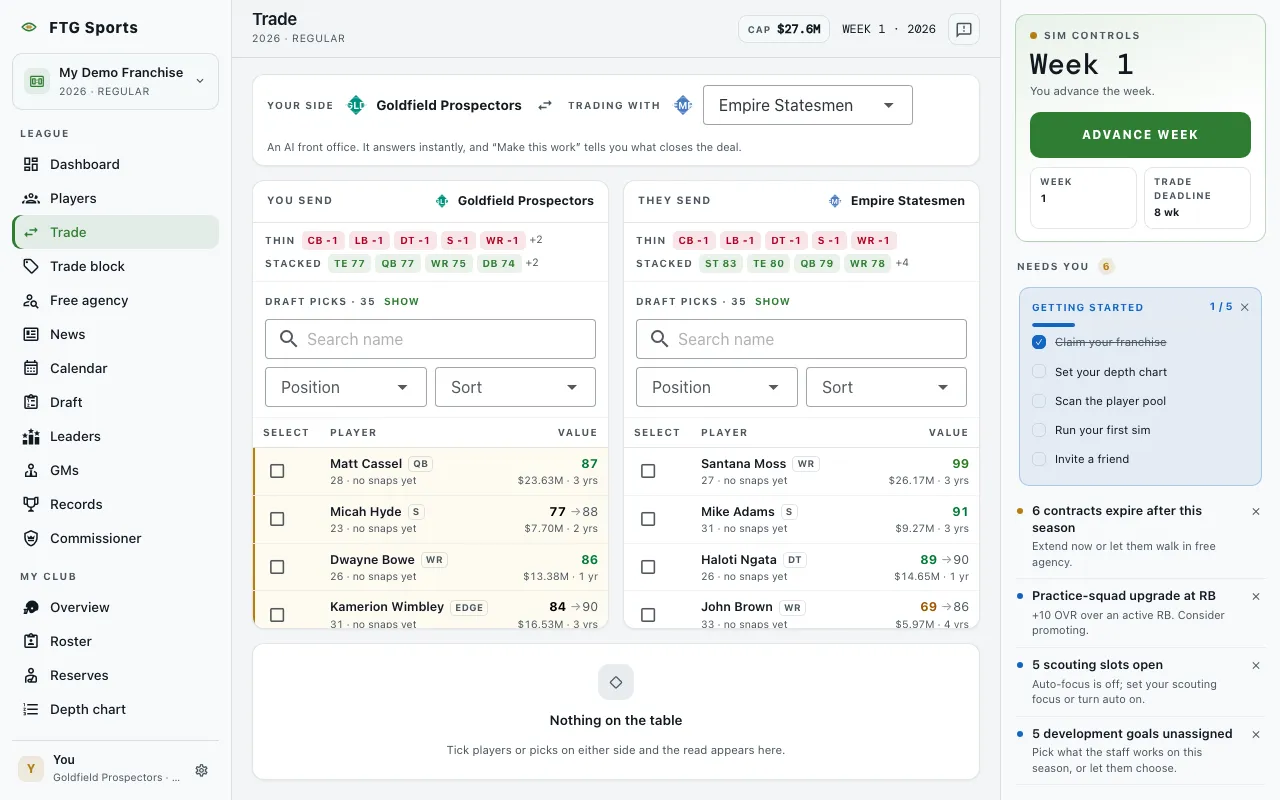
- Parties strip at the top. Your side is your team. Trading with is a drop-down of the other teams. A note under it says an AI front office answers at once and "Make this work" tells you what closes the deal. For another GM it says they have to accept, so your assistant reads the deal for you.
- Trade offers pane, only when the league has offers to show. Its title reads "Trade offers", plus how many are waiting on you. Each offer is a card:
- A header with the two teams and an arrow, a For you tag when the offer is pending and addressed to you, and a status tag. On an offer your club is on, Add note (or Note when you wrote one) opens your private note on the offer under the header.
- Two lists, "(team) send", with players and picks, or "nothing".
- Cap impact (money on only), with your cap change and either cap room after or over cap.
- A quoted reason from the other side, when there is one.
- Buttons, covered under What you can do.
- Show N resolved trades / Hide resolved at the bottom. With no offers it reads "No trade offers yet. Build one above and send it." With only resolved ones it reads "No pending offers right now."
- You send pane on the left, with your roster. Each side pane has the same parts, top to bottom:
- The header: the team crest and name, a cap readout (money on only), and Clear once you have ticked something.
- Thin and Stacked chips: positions where the team is short (up to five, then "+N") and its strongest position groups with their average OVR. A group counts as stacked when it has at least two players, its best player is 79 OVR or more, and its average is 69 or more. Both figures use current OVR.
- Deal cards for each ticked player or pick, with OVR and a ✕ to take it out.
- Draft picks · N with Show / Hide. Select a pick to tick it.
- Search name, Position and Sort controls. Sorts include POT, OVR, Salary, Age, Years left, Position and Name.
- Value balance pane in the middle. It shows a verdict with a bar, a one-line read of the deal, and, when money is on, your cap change and room after. It says "Nothing on the table" until you tick a player or pick.
- They send pane on the right, with the other team's roster and picks. It has the same parts as You send.
- Roster table in each side pane, with columns Player and Value. Each row has a checkbox, the name, position tag, age and a production line (or "no snaps yet"), then OVR and potential, and the cap hit and years left when money is on. Empty states: "Pick a team to load its roster." and "No players match this filter." with Clear filters.
- The deal ledger below, listing both packages, each contract, and the cap room. It reads "No deal on the table" when empty.
- Warnings in the balance pane: Over the cap, This puts you over the cap, a note that you release players to stay under the 40-man active roster limit, and Blocked with a reason when the deal is not legal.
On a phone the two rosters stack, You send first and They send below it. A bar pinned to the bottom of the screen shows their read, your cap after the trade and the Send offer button.
What you can do
- Trading with: choose the team you deal with.
- Tick a player or pick: add it to its side of the deal. Select the item again, or its remove button, to take it out.
- Send offer: sends the deal to an AI team. If the other team is a human GM, the button reads Send to GM and they decide. A confirmation asks first.
- Make this work: asks the AI team what would close the gap. It lists players and picks from your side, each with Add to deal.
- Reset: clears both sides.
- Shop him: works when you tick exactly one of your players and no picks. It asks every AI team for its best offer. In the offers dialog, load one to put it in the builder.
- Accept offer, Counter offer, Reject offer: on an offer addressed to you in the Trade offers pane. Accepting can ask you to release players first (Release and accept) if it would put you over the 40-man limit.
- Add note / Note: on an offer your club is on, opens or closes your note on that offer. See My notes.
- Withdraw offer: on an offer you sent that is still open.
- Show N resolved trades and Hide resolved: shows or hides finished offers.
- ✕ on a deal card, Clear, Clear filters: take items out or reset a side.
- Search name, Position, Sort: find players in the roster table.
- Draft picks · N: Show or Hide the pick list.
Two things can block a deal: the cap, and the 40-man active roster limit. After the trade deadline at week 9, and during the playoffs, the trade window is closed and trades reopen next season.