Appearance
Front office
The Front office is the money and staff screen. It shows what each player costs you over several seasons, who coaches the team, and, in the offseason, how to use your franchise tag.
How to get here
- Open the My club group in the navigation.
- Select Front office.
What you see
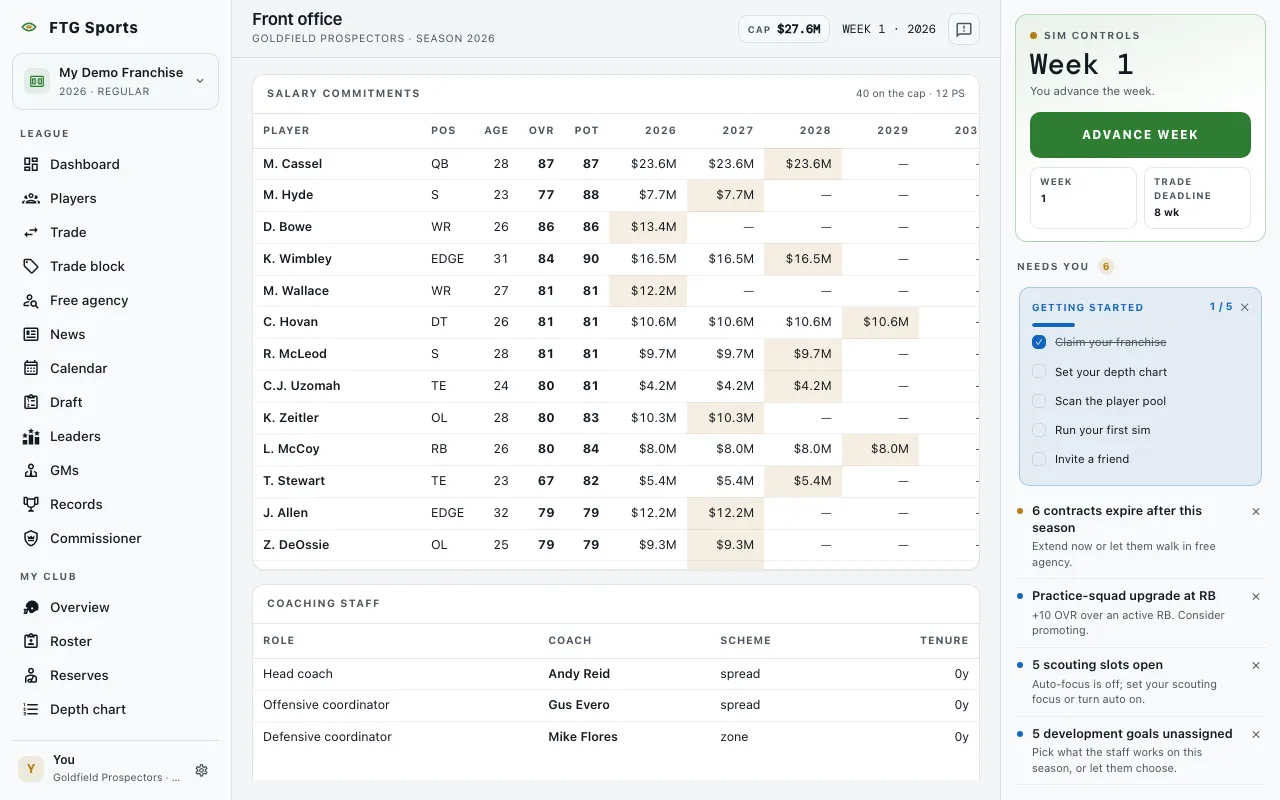
- Salary commitments: shown only when money is on in your league. A header counts the players on the cap, and the practice squad players listed off it. The table has Player, Pos, Age, OVR, POT, then one column for each season. A dash means no money that year. The season of a player's final contract year is marked. Three footer rows give Committed, Dead money and Cap room for each season, and cap room turns red when you are over. Tags beside a name: ext is an extension that starts when the current deal ends, and PS is a practice squad player whose pay does not count against the cap.
- Coaching staff: Role, Coach, Scheme and Tenure for your head coach and coordinators. If nobody is under contract, the pane points you to the Coaching screen.
- AI personality: appears only on a club run by the computer. Sliders show how that GM leans on four questions: Rebuild or contend, Acquisition, QB priority and Cap discipline. A Circuit breaker line shows when one is active.
- Franchise tag: appears only on your own club, and only in the offseason. It lists your pending free agents with Player, Pos, Age, OVR, POT and, when money is on, Tag value. Once you tag someone, the pane shows that player instead.
Click a column title to sort the tables.
What you can do
- Player name or coach name: opens that profile.
- Tag: franchise-tags that player for the upcoming season. You get one tag per team.
- Remove tag: frees the tag slot. A dialog asks Remove franchise tag? The player goes back to being a pending free agent.