Appearance
Coaching
Coaching is where you manage your three-person coaching staff. You hire and fire coaches, watch how safe each job is, and check whether your players suit the schemes your head coach runs.
How to get here
- Open the left rail and find the My club group.
- Click Coaching.
The screen has a tab strip across the top: STAFF, DEVELOPMENT, MARKET, MONEY and HISTORY. The MONEY tab appears only in leagues that show money.
What you see
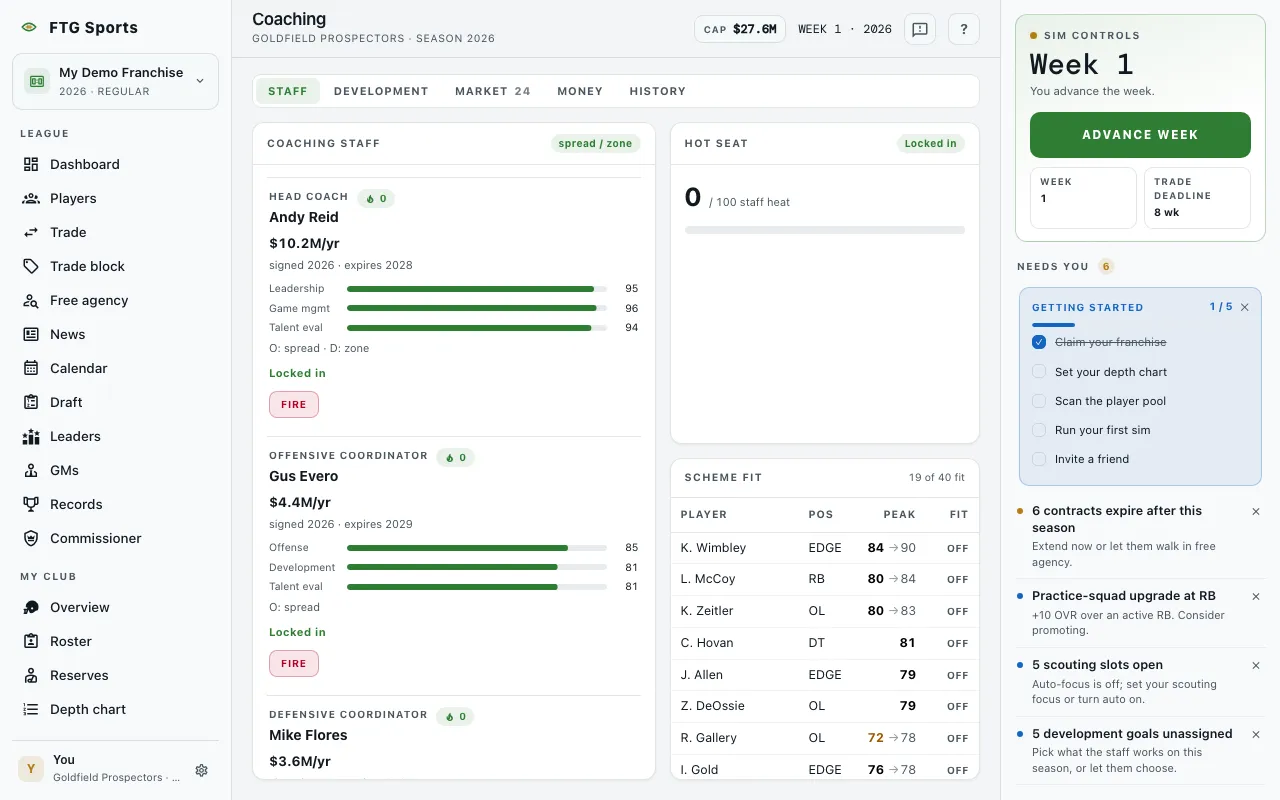
- Coaching staff (STAFF tab): one card per coach under contract. Each card shows the role (Head coach, Offensive coordinator or Defensive coordinator), the coach's name, a flame chip with the hot seat number from 0 to 100, the season the coach signed and the season the deal ends, three rating bars, and the schemes. A chip in the pane header names the club's offensive and defensive schemes. The yearly salary shows only in leagues that show money.
- Open roles (STAFF tab, your club only): a row for each empty seat with a Hire interim button.
- Hot seat (STAFF tab): the staff's average pressure on a 0 to 100 scale, with a bar and one of three labels: Locked in, Heating up or On the hot seat. When the head coach is under pressure, a What this heat means list spells out the effects. The Coach profile uses different labels for its own hot seat bar: Secure, Heating up and Furnace.
- Scheme fit (STAFF tab): a table of your active players with Player, Pos, Peak and Fit columns. Fit shows a green Fit chip or a quiet Off. The pane header counts how many players fit. If every player fits, the pane says so instead of listing them.
- Development goals (DEVELOPMENT tab): a count of goal slots used, such as "2 of 4 used". Under In progress, each row shows a player, the position, the goal and when it resolves ("this week" or "in 3 wk"). Goals are Breakout push, Durability program, Scheme versatility, Learn a position (shown as "Learning" plus the position while active) and Attitude reset. Under This season's results, each row shows the goal, a short outcome line and a Success or Failed pill. A successful goal reads, for example, "The ceiling rose." and a failed one reads "Came up short." With no goals, the pane says No development goals yet: open a player and start one.
- Coach market (MARKET tab): coaches who are free to sign, grouped by role. Each card shows ratings, a scheme line, and a note such as "+2 roster fits vs your current HC" (HC means head coach) or a scheme mismatch warning. A replace to sign chip marks a role you have already filled.
- Staff budget (MONEY tab): the money used against the staff budget cap, with a bar and the amount left. This budget is separate from the player salary cap.
- Dead staff budget (MONEY tab): buyouts you still owe to fired coaches, with Coach, Role, Buyout / yr and Through columns.
- Staff history (HISTORY tab): every coach who has held the job, with Coach, Role, From, To and Ended columns.
What you can do
- Fire (your club only): opens a confirmation. The coach's remaining salary becomes dead staff budget until the contract would have ended. You cannot undo it. Confirm with Fire coach.
- Hire interim (your club only, empty role): signs a cheap stopgap coach into the open role. It fits even when no staff budget is left.
- Hire or Replace on a market card (your club only): opens a dialog with a Years slider from 1 to 5. Hire appears when the role is empty. Replace appears when the role is filled, and the current coach is released with the full buyout as dead staff budget. The button is disabled and marked Over budget when the coach does not fit your staff budget.
- Ask and Name: sort the coach market by asking salary or by name. Ask appears only in leagues that show money.
- Auto-assign switch (DEVELOPMENT tab, your club only): turns automatic development goals on or off.
- Click a player name in Development goals: opens that player's page, where you start a goal.
- Click any column heading in the tables to sort by it.
- Click a coach name to open the coach profile.