Appearance
Draft
This is the draft room. It shows who is on the clock, the best prospects left, the picks just made and your own queue. Use it to make your pick or to set your queue before the clock reaches you.
How to get here
- In the left rail, find the League group.
- Click Draft. A red badge on the item shows when you are on the clock.
Outside the draft, the room shows one pane, Draft room, with "No draft underway". Its Draft report button opens Draft report, the grades for the last class.
What you see
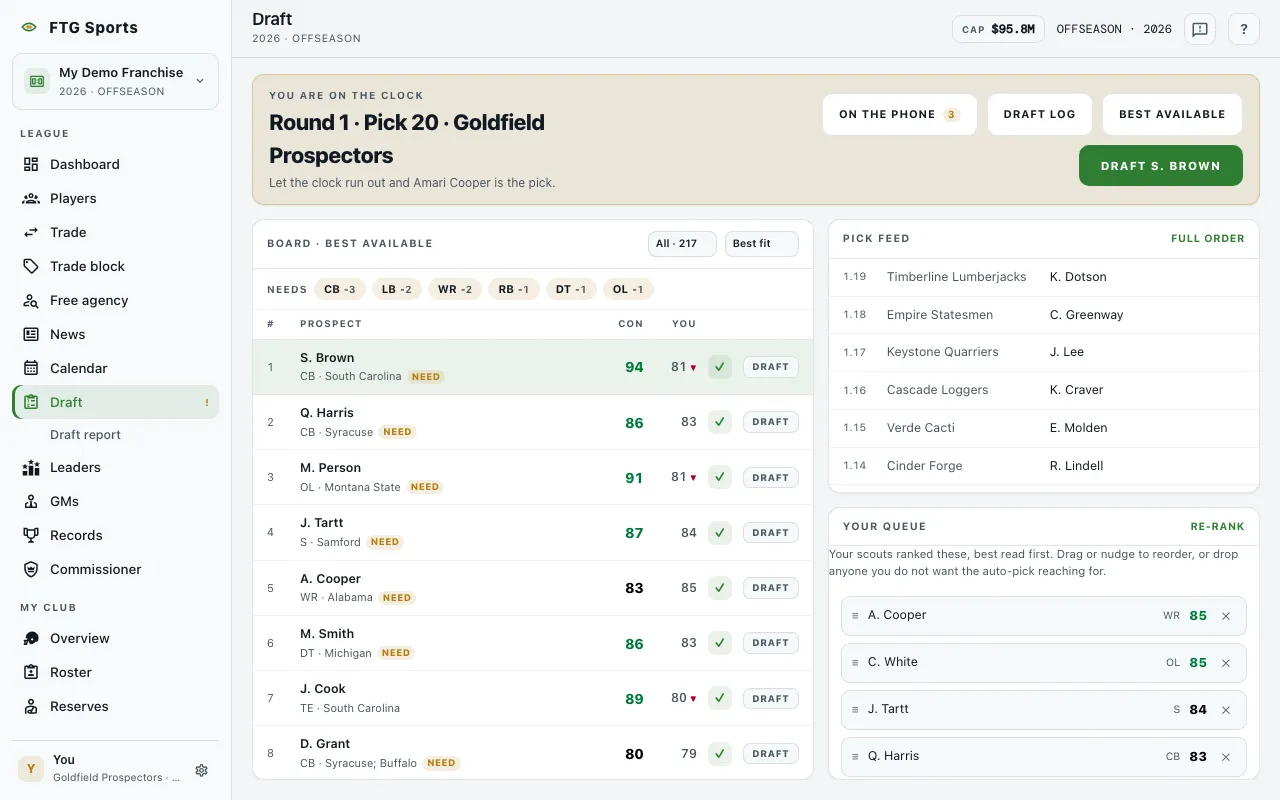
- Clock strip at the top: "On the clock", or "You are on the clock" on your turn. It shows the round, the pick and the team. Time left shows a countdown when the pick has a deadline. A note below may say which player the auto-pick takes if the clock runs out, or that the sim makes the pick for a team the computer runs.
- Board · best available pane: a ranked list of prospects with Prospect, CON and YOU columns. CON is the room's consensus read of that prospect's peak. YOU is your scouts' read. A small up or down mark means your scouts grade the prospect higher or lower than the room. A need tag marks positions your team lacks. The header holds a position filter and a sort menu: Best fit, Consensus, Your read and Position. A Needs row of position buttons filters the board to your biggest gaps.
- Pick feed pane: the picks just made, newest first, as round.pick, team and player.
- Your queue pane: the prospects you want, in order. Until you change it, a line says your scouts ranked the list. Below it, Auto-draft while I'm away is a checkbox.
What you can do
- Click a prospect row: selects that prospect.
- Note mark beside a prospect's name: opens your private note on him under the row. The mark is filled when you wrote one.
- + / ✓ on a board row: adds or removes the prospect from your queue.
- Draft on a board row: appears only on your turn. It starts the pick.
- Best available: on your turn, selects the top prospect on the board.
- Draft [name]: on your turn, opens a confirmation. Choose Make the pick. A selection cannot be undone.
- On the phone: on your turn, when clubs are calling about your pick, opens a list of offers. A badge shows how many. Each offer names the club (a link that opens in a new tab), the kind of deal and what each side gives. Player names open in a new tab, so the clock keeps running while you look. A warning appears when an offer gives up the pick you are on the clock for. Accept sends the deal straight through, and the other GM still has to agree. ✕ closes the list.
- Draft log: opens a list of every pick made so far, as round.pick, team and player. Your own picks are highlighted. Team names open the team page, and player names open the prospect page when you have a team. ✕ closes the log. Before any pick, it says "No picks yet".
- Full order: in the Pick feed header, opens Draft order.
- Drag, ▲, ▼ and ✕ in your queue: reorder or drop a prospect. Arrow keys also move a focused row.
- Re-rank: in the queue header, appears when the queue holds two or more prospects. It re-sorts the queue by your scouts' read.
- Auto-draft while I'm away: lets the game work down your queue, then best available.
- Run one pick and Skip to my pick (or Skip ahead if you have no team): appear when it is not your turn, the league is on manual pace, and you are the commissioner or the team on the clock is run by the computer or on auto-draft.
- Prospect name: opens that prospect's page when you have a team.
- On a phone, tabs switch between Board, Feed and Queue.