Appearance
Front office
Front office lists every salary on your books by season. On your own club it also holds two controls: the scouting budget and draft autopilot.
How to get here
- Open your league.
- In the left rail, under My club, click Front office.
What you see
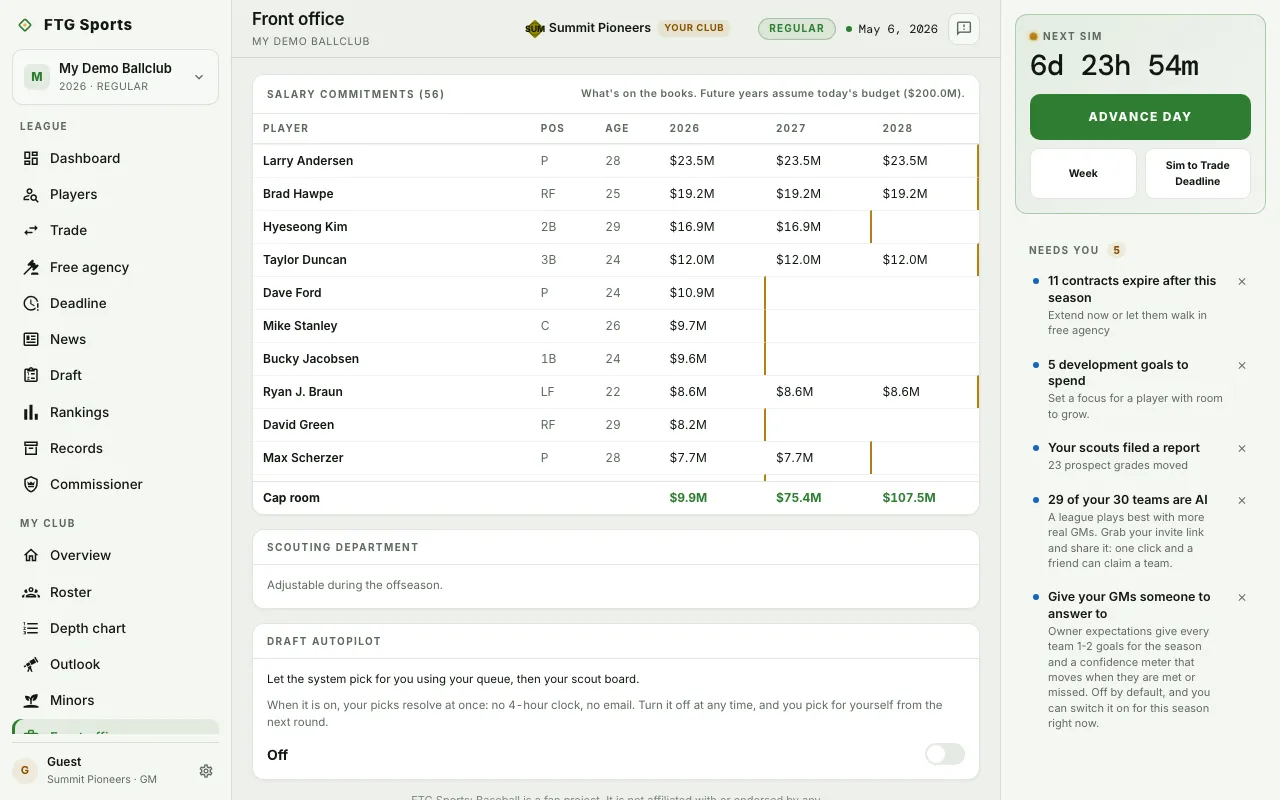
- Scouting department: your scouting budget in millions of dollars. When you can change it, you see a slider and Set allocation. Otherwise you see "Adjustable during the offseason." or "Locked for this offseason. You can change it next winter."
- Draft autopilot: an on/off switch with a short note.
- Salary commitments: every player and the player's pay in each season, with Player, Pos and Age. Tags on a row: dead (a released player's remaining money, or a declined club option's buyout), minors, IL and ext (an extension that starts when the current deal ends). A Player option tag marks a year the player decides. A dashed Club option cell marks a year your club decides. That year is not in Payroll. A final contract year is marked. (auto) is an auto-renewing minimum year, not guaranteed money. $0 on a Minors deal means it does not count against the cap.
- Totals under the grid: Payroll, Scouting and Cap room for each season. Negative cap room shows in red.
What you can do
- Budget slider: set the scouting budget. It works in the offseason window, before it locks.
- Set allocation: save the new budget.
- Draft autopilot switch: when on, the system picks for you from your queue, then your scout board. Your picks resolve at once, with no 4-hour clock and no email. Turn it off to pick for yourself from the next round.
- A player name: open the player's page.
On another club's Front office you see the salary grid only.