Appearance
Deadline
Deadline shows the trade-deadline clock, the latest trades in the league, and the rumors going around. Use it to see how long you have to make a deal.
How to get here
- Open your league.
- Select Deadline under the League group in the navigation. The item can carry a badge.
What you see
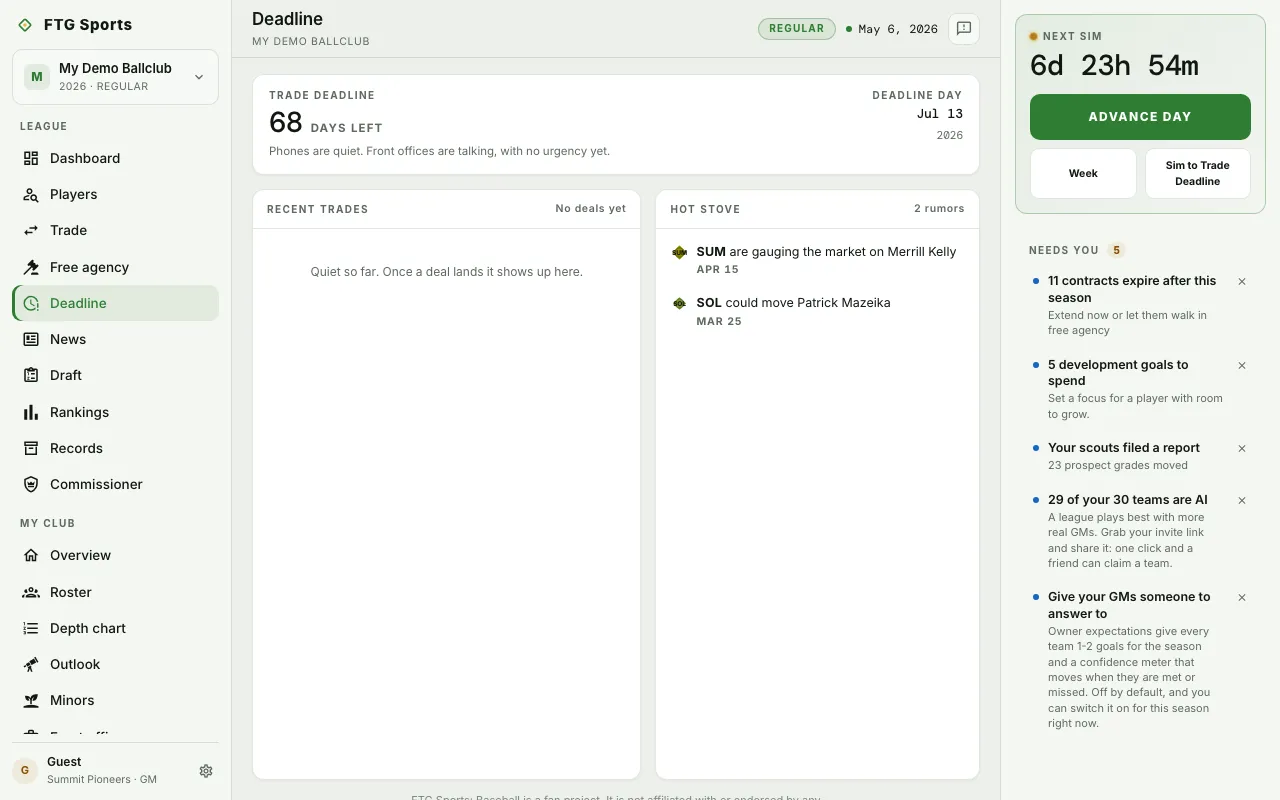
- Trade deadline clock, across the top. A large figure shows the days left, then "days left" or "day left". It reads Today on deadline day and Closed after it. A line under it changes as the date nears:
- More than 14 days out: "Phones are quiet. Front offices are talking, with no urgency yet."
- 14 days or fewer: "The buzz is starting. Contenders shop for arms, sellers price their veterans."
- 3 days or fewer: "Final calls. Every deal lands or dies in the next few days." A dot pulses beside the label.
- Closed: "No more trades until the offseason."
- Before a season has a schedule, the figure is a dash and the line says the deadline arrives once the season starts.
- Deadline day, on the right of the clock. It shows the date of the deadline and the season.
- Recent trades, left pane. It lists the latest completed deals. Each shows both clubs, the date, and who gets which players. The header counts deals, or reads No deals yet.
- Hot stove, right pane. It lists rumors about clubs and players. A rumor that came true carries a confirmed mark. The header reads Wire quiet when there are none. Rumors are chatter and can be wrong.
What you can do
- Read the clock: plan your trades around the figure and the date in Deadline day.
- Select a club abbreviation: opens that club's page.
- Select a player name: opens that player's page.
This screen has no buttons that change anything. To make a deal, go to Trade.